How to explore events and save queries in Metixon
See each event's total, unique visitors, and revenue, filter by properties in the Explorer, download as CSV or JSON, and save your query.
Explore events and save queries, step by step
Let's explore your store's events: how often each thing happens, every event's detail, how to download it, and how to save your queries.
1The Summary tab: total, unique visitors, and revenue per event
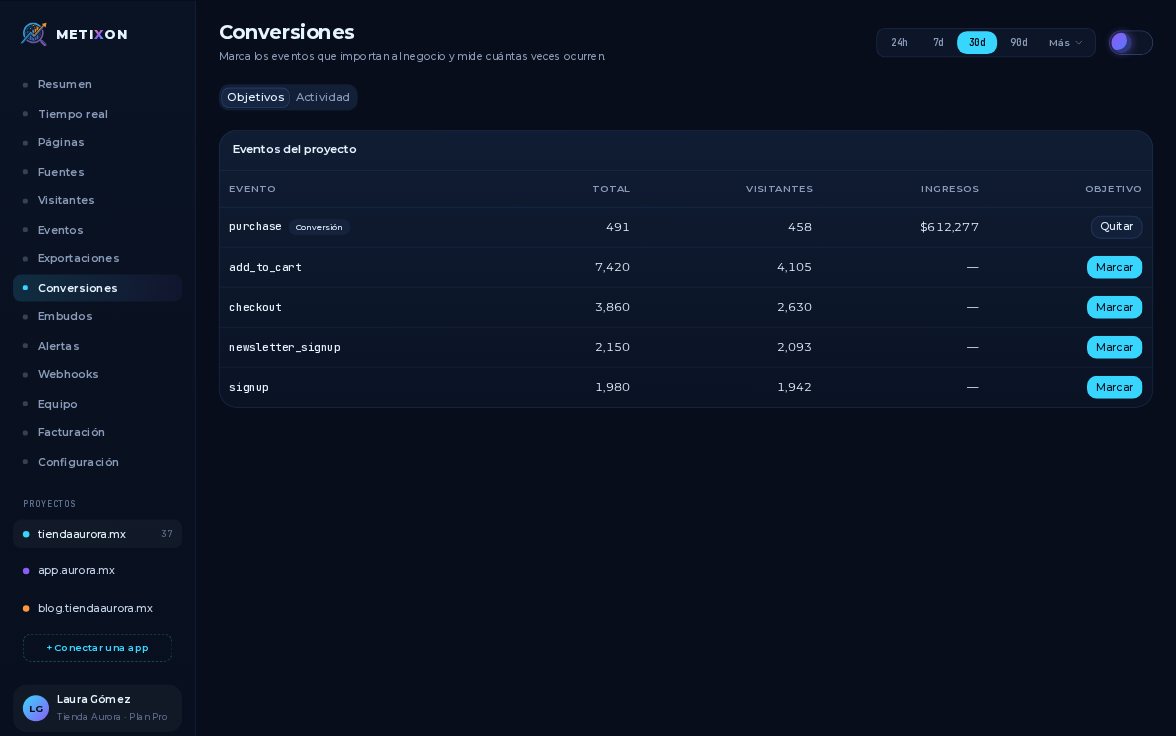
In Events, the Summary tab lists each event in the period: how many times it happened and how many distinct visitors did it.
If the event carries a value, like purchase, you also see revenue: over six hundred twelve thousand pesos in the last thirty days.
2The Explorer: pick an event and filter by properties
To see events one by one, open the Explorer. Each row shows its properties, user, country, browser and time.
In the Event picker, choose purchase, and the table shows only purchases.
Now filter by properties. Type a JSON object, for example pago, colon, tarjeta, and click Apply. Only card purchases remain.
3Download the results as CSV or JSON
CSV or JSON downloads exactly what you see: the event, the filter and the date range up top. Open it in your spreadsheet.
4Save query and Load saved…
If you'll run this query again, give it a name under Save query and click Save.
Another day, open Load saved and pick it: the event and filter come right back. The x next to its name deletes it.
Summary for the big picture, Explorer for the detail, and your saved queries always one click away.
Frequently asked questions
How do I filter events by a property?
In Events → Explorer, pick the event, type a JSON object in Filter by properties, for example {"pago":"tarjeta"}, and click Apply.
What does the CSV or JSON download include?
Exactly what you're looking at: the event, the property filter, and the date range you chose at the top.
How do I reuse a query?
Save it with a name using Save query. Later, pick it in Load saved… and the event and filter come right back.