
How to filter your analytics by date range and segment
Change the date range with 24h, 7d, 30d, 90d, or More, filter by source, country, or device with one click on a breakdown, and share the view with its link.
Filter by date range and segment, step by step
Let's change the Overview's date range and filter it by a segment, like a source or country, in one click.
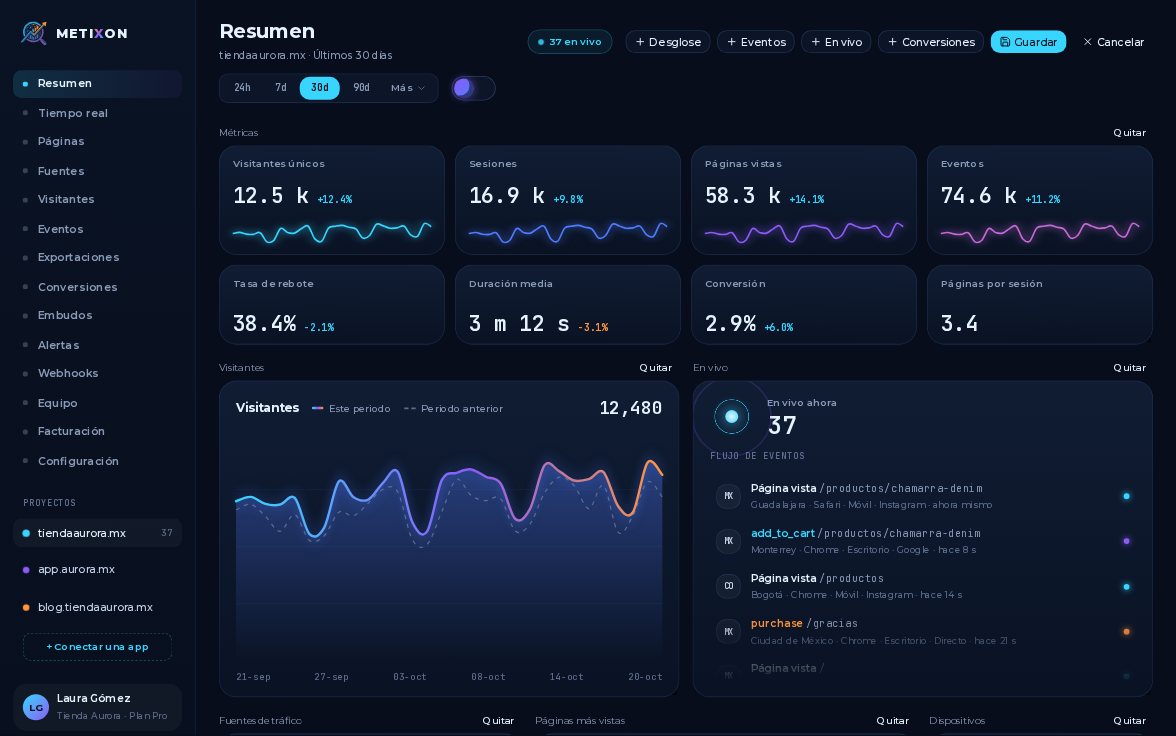
1Quick ranges: 24h, 7d, 30d, 90d, and More
These buttons change the range for the whole Overview: the last twenty-four hours, seven, thirty or ninety days. Cards and chart update instantly.
More has other ranges: Today, Yesterday, This month, the last twelve months or This year. I pick This month.
2Filter by a segment with one click on a breakdown
To see one segment, click a breakdown row. With Instagram, the whole Overview filters to those visits, and its tag appears up top.
Filters add up. Click Mexico and now you only see Instagram visits coming from Mexico.
3Remove a filter or use Clear filters
To remove one, click the X on its tag. Only the country filter is left.
I add Mobile from the devices ring. With two or more filters, Clear filters appears and removes them all.
4Share the view: filters travel in the URL
The range and filters live in the page address. Copy the link, and anyone who opens it sees the exact same view.
Pick the range, click a breakdown to filter, and share the link. That's reading your data by segment.
Frequently asked questions
How do I filter the Overview by a source or a country?
Click that value's row in its breakdown. Filters add up and appear as tags in the filter bar.
How do I remove filters?
With the X on each tag. When there are two or more, Clear filters appears so you can remove them all at once.
Can I share a filtered view?
Yes: the date range and filters travel in the page's URL. Anyone who opens the link sees the same view.
More from Traffic analysis
 1.1
1.1Customize the Overview with widgets
Narrated 1.3
1.3See who's on your site in real time
Narrated 1.4
1.4Find your most viewed pages
Narrated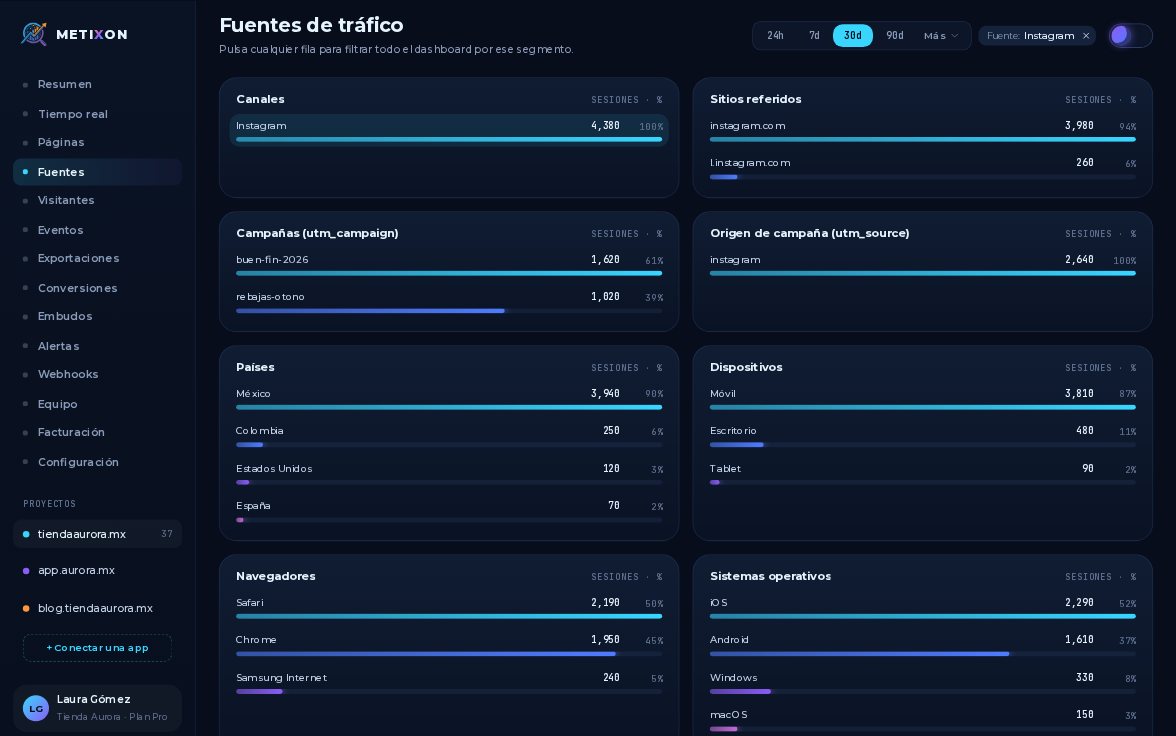 1.5
1.5Traffic sources and UTM campaigns
Narrated 1.6
1.6