How to set your project's time zone and domains
Change your Metixon project's name, time zone, and allowed domains, and understand the difference between miapp.com and *.miapp.com.
Set up your project, step by step
In this video you'll set up your project: its name, the time zone that defines your days, and the domains Metixon accepts data from.
1Name and Time zone: when each day starts
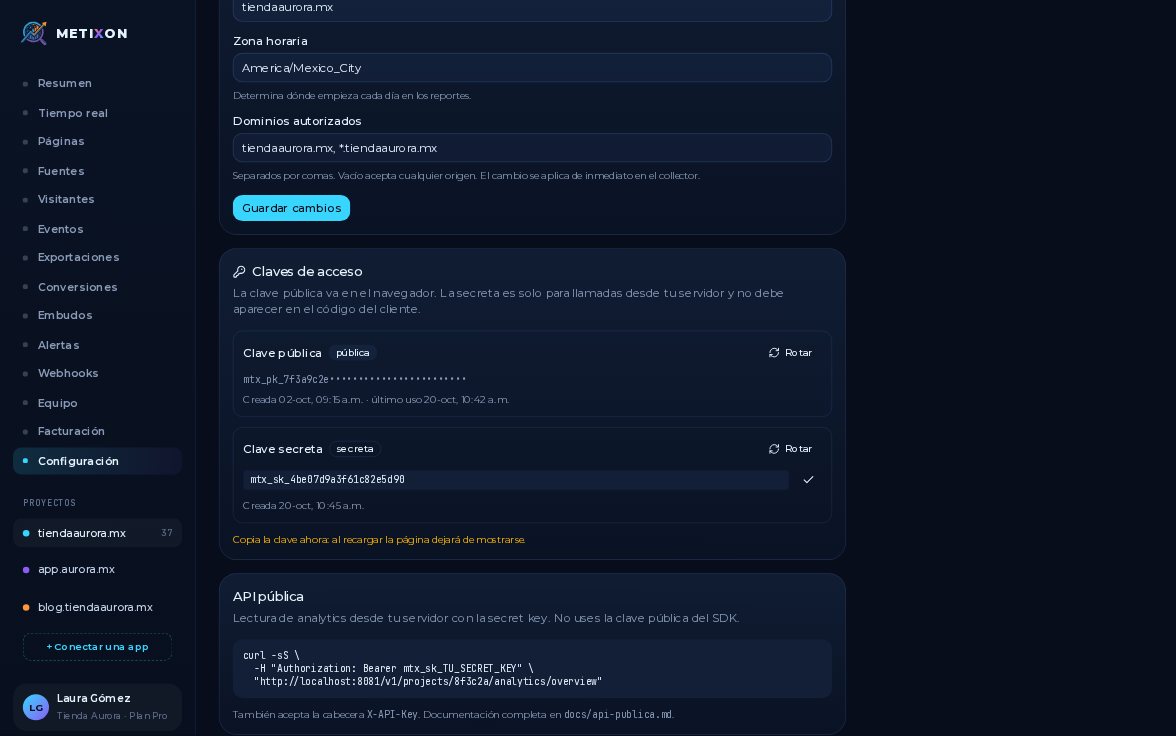
Go to Settings. In the Project card, the name is how you see it in the sidebar and in your reports. Change it anytime.
Then check the time zone. With UTC, your days would start at six in the evening Mexico City time. Type yours, like America Mexico City.
2Allowed domains, with wildcards like *.miapp.com
Allowed domains lists the sites you accept traffic from, separated by commas. With asterisk dot in front, only subdomains count, like www.
To also accept the address without www, add the root domain. A domain without an asterisk already includes all its subdomains.
3Save your changes
Click Save changes. Done: the collector applies the new domains at once, without touching your site's snippet.
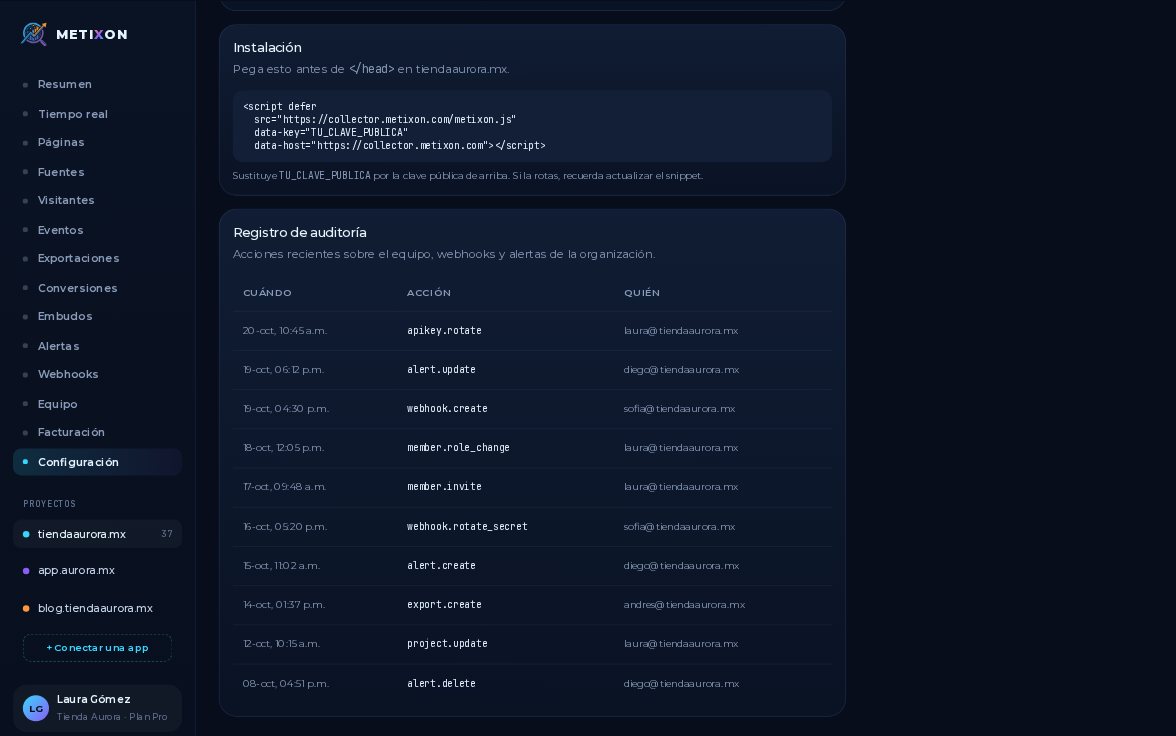
Below are your keys, the public API, the install snippet, and the audit log. Each has its own video.
Name, time zone, and allowed domains: check all three, save, and your reports are measured right from today.
Frequently asked questions
What is the project's time zone for?
It determines where each day starts in your reports. If it's left on UTC, your days would start at 6 p.m. Mexico City time.
What's the difference between miapp.com and *.miapp.com?
With an asterisk and a dot, only subdomains like www are accepted. A domain without an asterisk accepts the address without www and all of its subdomains too.
Do I need to change the snippet when I edit the domains?
No. When you click Save changes, the collector applies the new domains immediately.