
How to customize your Metixon dashboard with widgets
Read the metric cards, open Edit layout, move and resize widgets, add breakdowns, events, or conversions, and save your layout.
Customize the Overview with widgets, step by step
Let's read the Overview cards and arrange its widgets your way: move, resize, add new ones and remove what you don't use.
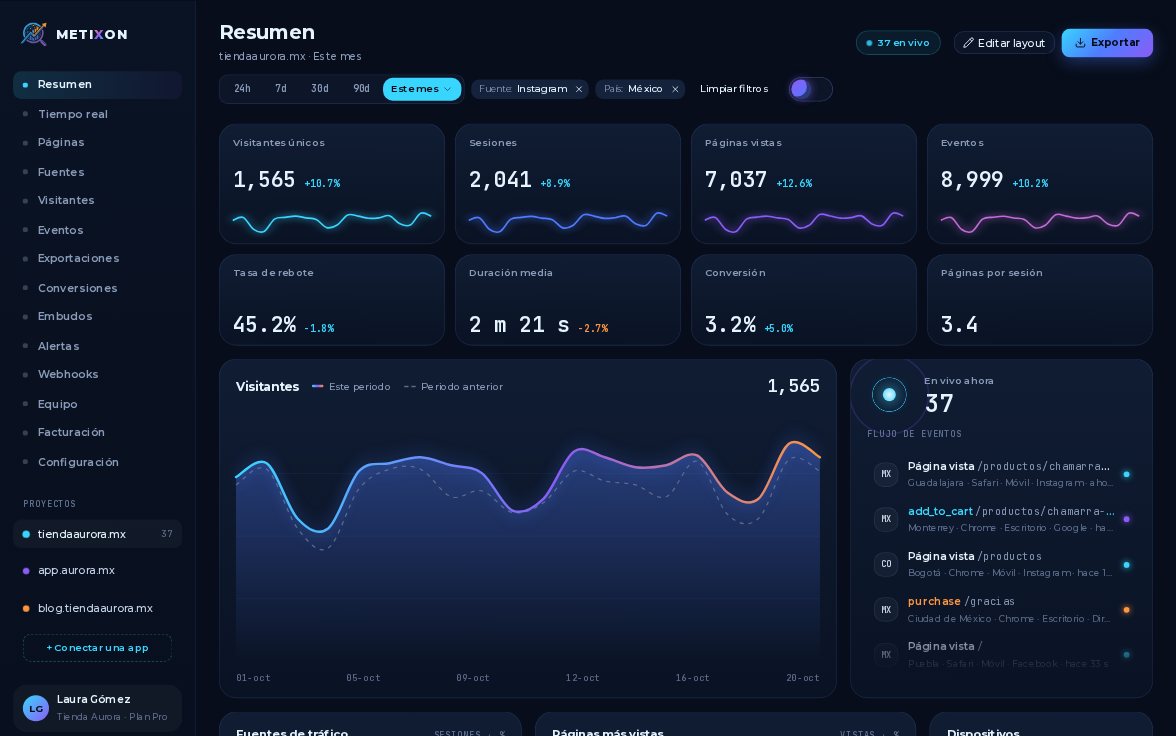
1The metric cards and how they compare to the previous period
Each card compares the period you picked with the previous one of the same length. Cyan means better, orange means worse.
Bounce rate works the other way: going down is good news, so its drop also shows in cyan.
2Edit layout: move and resize widgets
To customize the Overview, click Edit layout. Buttons to add widgets appear up top, and each widget shows its name and Remove.
Drag a widget's corner to resize it. Here I make the Visitors chart narrower.
To move it, drag it from anywhere. I put Live next to the chart and stretch it to fill the gap.
3Add a Breakdown, Events, Live, or Conversions widget
The buttons up top add Breakdown, Events, Live or Conversions. Each new widget appears at the end of the dashboard.
Place the new ones wherever you like. I put Conversions next to Events to see your sales at a glance.
4Remove a widget and Save the layout
Anything you don't use, take out with Remove. The widgets below move up to fill the gap.
When you like it, click Save. Changed your mind? Cancel discards all your changes.
Edit layout, arrange, add or remove, then Save. That's how you tailor your Overview.
Frequently asked questions
What is each card's percentage compared against?
Against the previous period of the same length. For bounce rate, going down is good, so a drop is shown in cyan. Period comparison is on Pro, Business, and Enterprise; Starter doesn't show it.
Which widgets can I add to the Overview?
Breakdown, Events, Live, and Conversions. Each one appears at the bottom of the dashboard, and you can move or resize it.
Are layout changes saved automatically?
No: not until you click Save. Cancel discards everything you moved, added, or removed.
More from Traffic analysis
 1.2
1.2Filter by date range and segment
Narrated 1.3
1.3See who's on your site in real time
Narrated 1.4
1.4Find your most viewed pages
Narrated 1.5
1.5Traffic sources and UTM campaigns
Narrated 1.6
1.6