How to invite your team and assign roles in Metixon
Invite people by email, choose admin, developer, analyst, or viewer based on what each person needs, and change or remove access when needed.
Invite your team and assign roles, step by step
Let's invite your team to Metixon and give each person the right role for the job.
1Invite: email, role, and your plan's seats
Team shows who can access your organization. To add someone, click Invite and type their email.
Then pick a role. Mariana will run marketing reports, so we give her Analyst and click Invite.
She gets an email to accept. Until then, she shows as Pending, and she already takes one of your plan's seats: here, six of fifteen.
2What each role can do: admin, developer, analyst, and viewer
Each role opens more or fewer doors. Admin handles almost everything, including team and keys. Developer installs and configures, but can't manage the team.
Analyst builds funnels, alerts, and exports, without touching settings. Viewer only views. And you, the owner, change the plan.
3Change a member's role or remove them
To change a role, open it in the person's row. Valeria will do reports too: switch her to Analyst and it saves instantly.
If someone leaves, like Andrés, click Delete and confirm. They lose access to the organization.
Invite by email, pick the role each person needs, and adjust it as their work changes.
Frequently asked questions
What can each role do in Metixon?
Admin handles almost everything, including the team and keys. Developer installs and configures, without managing the team. Analyst builds funnels, alerts, and exports. Viewer can only view. The owner can also change the plan.
What happens if the person I invite doesn't have an account?
They get an email to accept the invite. Until they do, they show up as Pending in the member list.
How many people can I invite?
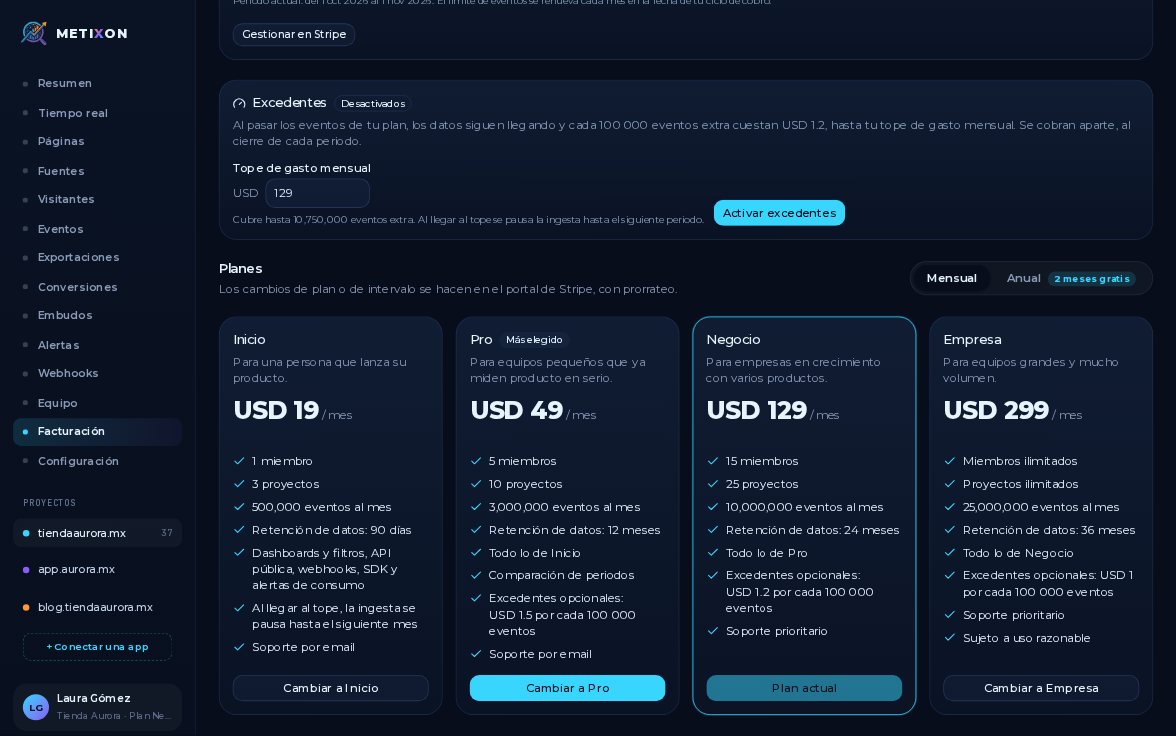
It depends on your plan: Starter has 1 member (just you, so you can't invite anyone), Pro 5, Business 15, and Enterprise has no limit. Pending invites count too.
How do I change someone's role or remove them from the team?
In Team, choose the new role in their row and it's saved right away. To remove them, click Delete and confirm.